- Introduction
- Pre-Requisites
- What is Not Covered
- What is Covered
- Understanding SharePoint Quick Links JSON Structure
- Testing the Config
- Home.aspx/TopicHome.aspx vs Site Pages
- References
Introduction
The Quick Links web part in SharePoint is a quick and easy means to lump together links to relevant topics in a single place. This web part can be placed on any site page or home page. Adding links to the web part is a manual process. What happens when you want to dynamically update the web part with categorized links?
In this scenario we have a list of site pages grouped into various categories like site pages related to Engineering, Sales, etc. A separate metadata column was added using a Choice field to categorize the pages. We want to group related (categories) of pages and display the respective links to the pages on a single page containing a Quick Links webpart.
My approach was to use PowerShell. I had originally considered using Power Automate and that would have been my preferred method but there were some roadblocks with that method that I could not resolve….at least not yet.
Part 1 will involve extracting the JSON and making the necessary manipulations so the JSON “Config” can be applied to a Quick Links web part. In other words let’s put something together to prove this works.
Next, we want to update a Quick Links web part on a site collection home page to show all the links to the category pages.
Pre-Requisites
The following are the required applications required.
- VS-Code
- PowerShell 7.4.6
- PNP PowerShell cmdlets (https://pnp.github.io/powershell/cmdlets/index.html)
- SharePoint Online Management Shell (https://www.microsoft.com/en-us/download/details.aspx?id=35588)
- Entra ID Application (https://pnp.github.io/powershell/articles/registerapplication.html)
- Access to a SharePoint site collection (Owner/Full Access)
What is Not Covered
As I began to write this I realized the article is getting way to long. So I will be breaking things up into other sections at a later date.
Originally, this article was to be written in a single part but after I began writing (my first blog post ever) it became clear to me that breaking this up into multiple parts might be a better option.
What is Covered
The focus on this post will be on obtaining the JSON template and indicating which sections need to be modified so a successful JSON configuration can be applied to a Quick Links web part.
Understanding SharePoint Quick Links JSON Structure
Obtaining the JSON for Quick Links
Where do we get a Quick Links web part JSON configuration to work with so we can hatch a plan to modify it and deploy it to the web part? Go to the source!
Go to the SharePoint workbench by typing:
https://[tenant].sharepoint.com/sites/[site]/_layouts/15/workbench.aspx
Add a Quick Links web part, add a few links to random pages and then click “Web Part Data”. You can grab a copy of the JSON required to configure a web part. Adding two or three links will provide you a better context of where things need to go. Internal links to SharePoint pages will look a slightly different than external links. The focus on this article are links to internal (SharePoint) resources so if you are using external links be sure to add some in the workbench to get an idea of how those look in JSON.
Key Properties
I do not intend to dive into all the properties of the Quick Links web part which need to be set in this article. That may be the subject of another article.
For our purposes we do need to modify specific properties to make things work the way we want them to. Namely, InstanceID, baseURL, items[x], siteID, webID, listId, UniqueId. I have highlighted the key elements which need to be modified with details to follow on the specific properties that must be modified.
Web Part Data
InstanceID – this is the instance of the Quick Links web part on a SharePoint page. When applying the JSON configuration to a site page this property needs to be updated with the Quick Links web part InstanceID (target). This can be found using the maintenancemode property.
https://[tenant].sharepoint.com/sites/[site]?maintenancemode=true
MaintenanceMode will show all the Site Page objects and some critical pieces of information for each object such as the InstanceID of the web part(s) on the page.
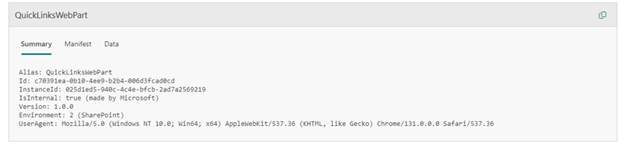
id property – as near as I can tell this is the class identifier for the Quick Links web part and as such this does not change across a tenant for (example) the Quick Links web part. It may change for different tenants but not within a tenant. No modification of this property is necessary.
Links
The links property contains the URL(s) to the respective pages along with the BaseURL property which is the site collection URL.
Items
The Items array contains added information for the links and the only properties we need to be concerned with are the: siteID, webId, listId, and uniqueId.
The good news is the siteID and webID do not change on a given tenant. I used the article in the references to get the PowerShell code which obtains this information. Anywhere in the JSON where you see siteId and webId should all match.
The listId property is, in this case, the ID of the Site Pages list since I am using aspx files in the Site Pages document folder. Using the code snippet below we can grab the listId of the Site Pages document library within the site collection.
$ListID=get-pnplist | Where-object {$_.Title -eq “Site Pages”} | Select-object -property Id
The last property is the UniqueId. This property is the GUID of the target site page which you can obtain using the PowerShell cmdlet.
get-pnplistItem -list "Site Pages"This assumes we are linking to pages within our tenant which, in this case, we are. So this value would change for each site page link.
The remainder of the properties can remain as is. I did not try to modify any of the other properties to see what they might do so there is some opportunity there to either break things or have a slightly different lay out.
There are some other properties that I did not mention such as baseURL, items[x]. baseURL will be the tenant URL while items[x] is an array of (among other things) siteId, webId, listId, and uniqueId.
{
  "position": {
    "zoneIndex": 1,
    "sectionIndex": 1,
    "controlIndex": 1,
    "layoutIndex": 1
  },
  "webPartData": {
    "id": "c70391ea-0b10-4ee9-b2b4-006d3fcad0cd",
    "instanceId": "8d3a3b2f-0e36-4e92-9b08-d7d83d6df30d",
    "title": "Quick links",
    "description": "Show a collection of links to content such as documents, images, videos, and more in a variety of layouts with options for icons, images, and audience targeting.",
    "audiences": [],
    "serverProcessedContent": {
      "htmlStrings": {},
      "searchablePlainTexts": {
        "items[0].title": "Home",
        "items[1].title": "TEST1"
      },
      "imageSources": {},
      "links": {
        "baseUrl": "https://[tenant].sharepoint.com/sites/TEST-SITE",
        "items[0].sourceItem.url": "https://[tenant].sharepoint.com/sites/TEST-SITE/SitePages/TopicHome.aspx",
        "items[1].sourceItem.url": "https://[tenant].sharepoint.com/sites/TEST-SITE/SitePages/TEST1.aspx"
      },
      "componentDependencies": {
        "layoutComponentId": "706e33c8-af37-4e7b-9d22-6e5694d92a6f"
      }
    },
    "dataVersion": "2.4",
    "properties": {
      "items": [
        {
          "sourceItem": {
            "guids": {
              "siteId": "05d4fdb1-2695-4196-9b41-bc5db12c0534",
              "webId": "7cadc20e-4dc7-44cc-ba08-315b91f6894f",
              "listId": "0e4c22ba-496e-4d95-8d81-6eb6bf72c08b",
              "uniqueId": "108b2deb-41ce-42f3-b5c7-a07e8baf6876"
            },
            "itemType": 0,
            "fileExtension": ".ASPX",
            "progId": null
          },
          "thumbnailType": 3,
          "id": 2,
          "description": "",
          "altText": ""
        },
        {
          "sourceItem": {
            "guids": {
              "siteId": "05d4fdb1-2695-4196-9b41-bc5db12c0534",
              "webId": "7cadc20e-4dc7-44cc-ba08-315b91f6894f",
              "listId": "0e4c22ba-496e-4d95-8d81-6eb6bf72c08b",
              "uniqueId": "8efceb03-4d55-4dd3-94aa-9a7c0d42fade"
            },
            "itemType": 0,
            "fileExtension": ".ASPX",
            "progId": null
          },
          "thumbnailType": 3,
          "id": 1,
          "description": "",
          "altText": "",
          "rawPreviewImageMinCanvasWidth": 32767
        }
      ],
      "isMigrated": true,
      "layoutId": "CompactCard",
      "shouldShowThumbnail": true,
      "isTitleEnabled": true,
      "imageWidth": 100,
      "buttonLayoutOptions": {
        "showDescription": false,
        "buttonTreatment": 2,
        "iconPositionType": 2,
        "textAlignmentVertical": 2,
        "textAlignmentHorizontal": 2,
        "linesOfText": 2
      },
      "listLayoutOptions": {
        "showDescription": false,
        "showIcon": true
      },
      "waffleLayoutOptions": {
        "iconSize": 1,
        "onlyShowThumbnail": false
      },
      "hideWebPartWhenEmpty": true,
      "dataProviderId": "QuickLinks",
      "webId": "7cadc20e-4dc7-44cc-ba08-315b91f6894f",
      "siteId": "05d4fdb1-2695-4196-9b41-bc5db12c0534"
    },
    "containsDynamicDataSource": false
  },
  "controlType": 3,
  "id": "8d3a3b2f-0e36-4e92-9b08-d7d83d6df30d",
  "webPartId": "c70391ea-0b10-4ee9-b2b4-006d3fcad0cd",
  "emphasis": {},
  "zoneGroupMetadata": {
    "type": 0
  },
  "reservedHeight": 146,
  "reservedWidth": 744,
  "addedFromPersistedData": true
}
Testing the Config
At this point, if we did things correctly, we should be able to create a Site Page, add an (empty) Quick Link web part to the page, save and publish, and, using PowerShell, deploy a modified JSON targeting the uniqueID of the Quick Links web part.
To do that we’ll use the set-PnPPageWebPart
set-PnPPageWebPart -page [Site Page Name] -identity [Quick Links Web Part InstanceId] -PropertiesJson [modified JSON file]
Your Site Page should now have the Quick Links web part updated with the links from the test file.
To accomplish this will require slight modification. Here are the steps:
- Create a new site page
- Add a Quick Links web part to the page
- Use MaintenanceMode to grab the Quick Links web part InstanceID on the new site page
- Modify the JSON file by changing the UniqueID property value to the InstanceID of the Quick Links web part
- Save this new JSON file
- In PowerShell assign the JSON to a variable
- Use the Set-PnPPageWebPart to update the Quick Links web part
After refreshing the page you should see the web part updated.
Home.aspx/TopicHome.aspx vs Site Pages
What happens when you put a Quick Links web part on a site collection home page (home.aspx or topichome.aspx) and attempt to run Set-PnPPageWebPart. Great question!
You will get the following error:
Line |
108 | Set-PnPPageWebPart -Page “topichome.aspx” -Identity “d7cfc31e-8805-40 …
| ~~~~~~~~~~~~~~~~~~~~~~~~~~~~~~~~~~~~~~~~~~~~~~~~~~~~~~~~~~~~~~~~~~~~~
| Web part does not exist
Despite numerous attempts using the set-pnppagewebpart cmdlet it would not work and I kept getting the same error. There is something distinctly different about the Home.aspx or TopicHome.aspx page vs. a “vanilla” page.aspx.
Executing that cmdlet on a site page other than the two above worked just fine and the web part was updated.
I will write about that work around in another post.
 Pablo
Pablo 
Leave a comment